Shopify Bulk Alt Text Generation — Complete Guide
This guide walks you through Shopify bulk alt text generation using Syncor Alt — including all configuration options, best practices, and when to use each setting.
If you haven’t scanned your store yet, start with the Quickstart guide first.
Table of Contents
Overview: Bulk Alt Text Generation
In Syncor Alt, all bulk alt text generation happens through Tasks. Each task is queued in our system and processed on the background.
A Task:
- Has its own configuration (scope, filters, autosave behavior)
- Runs in the background
- Uses credits (1 alt text = 1 credit)
- Can be reviewed before applying (if Autosave is disabled)
Creating the right task configuration ensures:
- You don’t overwrite important existing alt texts unintentionally
- You don’t waste credits
- You automate exactly what you need
Step 1 — Go to Bulk Generation page
You can create a new task by:
Clicking Generate Alt Texts from the dashboard
or
Clicking Bulk Generation from the sidebar menu
This opens the Bulk Generation page.
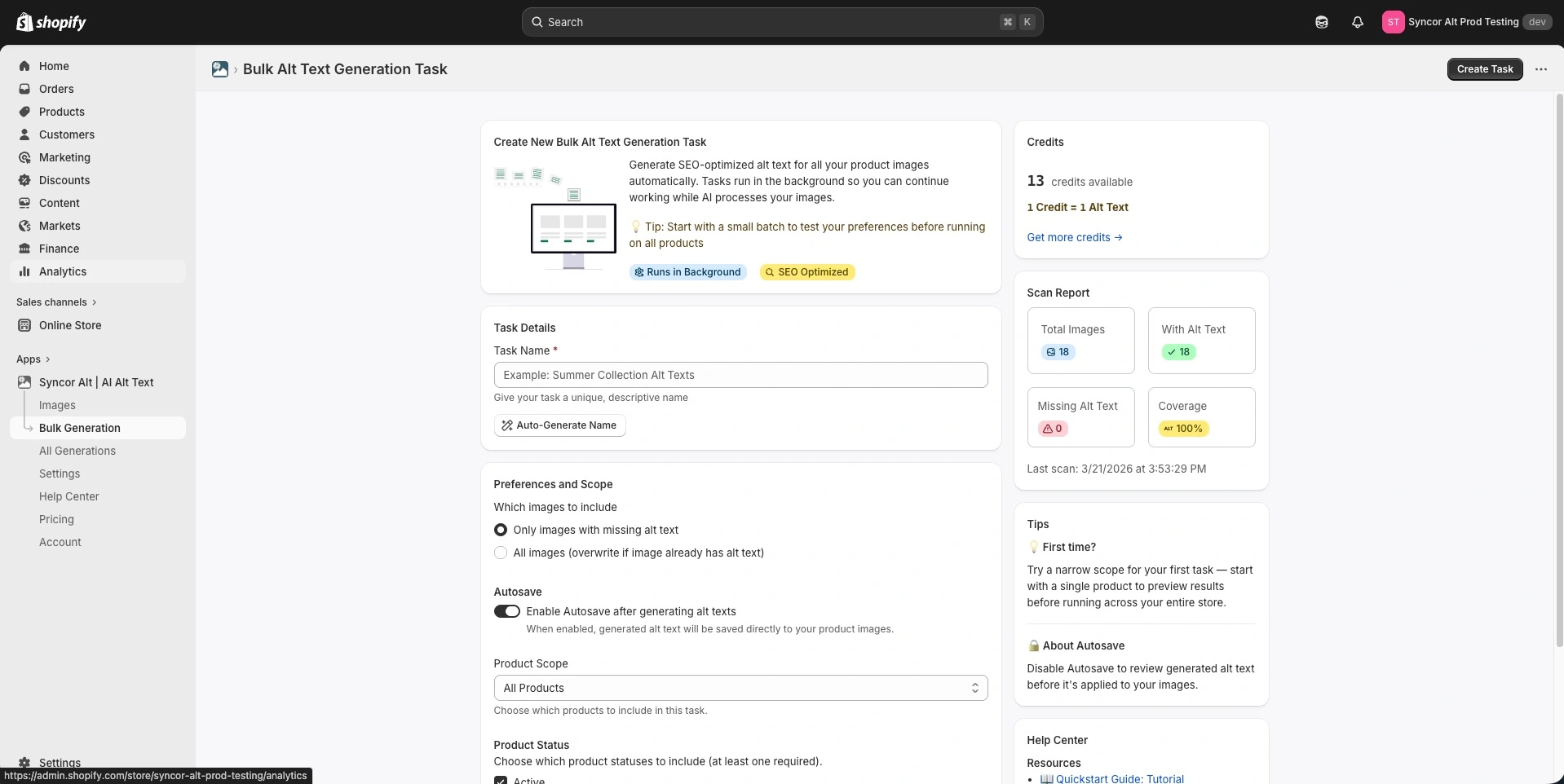
This is the page where you can create bulk alt text generation tasks in Syncor Alt.
There are helpful widgets on the right sidebar to give you quick information:
- Credits: How many credits you have
- Scan Report: A quick overview of your store’s alt text status
- Tips: Helpful insights on creating a task
- Help Center - Quicklinks to get additional information or ask for support
Step 2 — Task Details (Required)
Under Task Details, give your task a name.
This will help you quickly identify your tasks in the future.
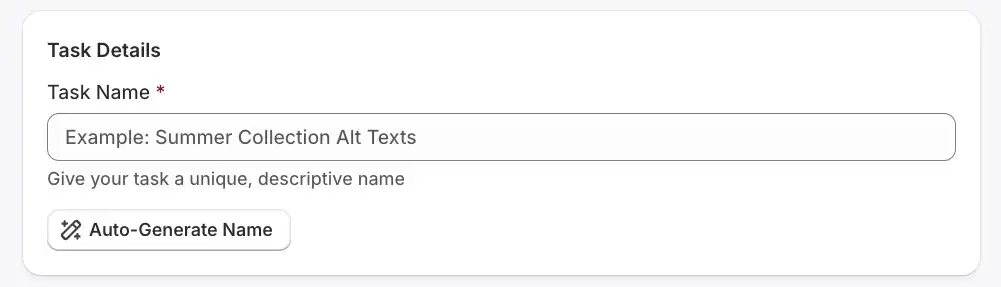
You have two options:
- Enter a custom descriptive name
- Click Auto-Generate Name
Why naming matters
Good task names help you:
- Identify which scope was used
- Track experiments
- Understand credit usage later
- Compare different configurations
Example names:
- “Missing Alt Texts – Summer Collection”
- “Overwrite All – Active Products”
- “Draft Products SEO Optimization”
This field is required before saving.
Step 3 — Preferences & Scope
This is where you control what images will be processed.
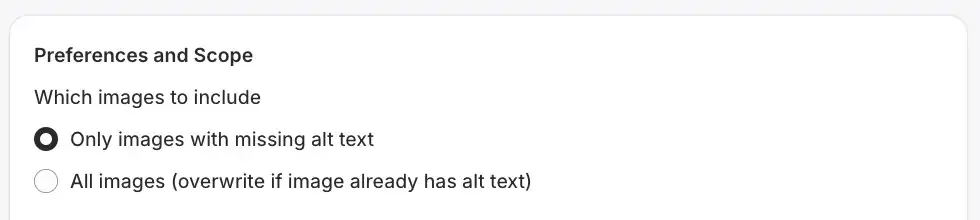
Alt Text Generation Scope
You’ll see two options:
Only images with missing alt text
- Generates alt text only if an image has no alt text
- Skips images that already have one
- Does NOT overwrite existing alt texts
Best for:
- First-time optimization
- Preserving manually written alt texts
- Conservative credit usage
All images (overwrite if image already has alt text)
- Generates alt text for every image
- Overwrites existing alt texts
Best for:
- Re-optimizing outdated alt texts
- Standardizing your store’s alt text style
- Full SEO refresh
⚠️ Use carefully — this replaces existing alt texts.
Step 4 — Autosave (Automation Level)
Autosave determines whether alt texts are applied automatically.

Autosave Enabled
- Alt texts are saved to your Shopify store immediately after generation
- Fully automated workflow
- No manual review required
Best for:
- Trusted configurations
- Large-scale automation
- Ongoing maintenance
Autosave Disabled
- Generated alt texts are NOT applied automatically
- You must review them first
- You’ll click Apply all alt texts manually
Best for:
- Testing configurations
- First-time usage
- Brand-sensitive products
- Quality control
If you’re new to Syncor Alt, we recommend disabling Autosave for your first task.
Step 5 — Product Scope
This determines which products are included in the task.

You have three levels of scope:
All Products
- Scans your entire catalog
- Includes all product images
Best for:
- Store-wide optimization
- Full SEO upgrade
⚠️ Can consume many credits if you have many images.
Selected Collections
- Only processes products inside chosen collections
- Narrower than All Products
Best for:
- Seasonal collections
- Specific categories (e.g., “Shoes”, “Accessories”)
- Incremental optimization
Selected Products
- You manually choose specific products
- Only their images are processed
Best for:
- Testing
- High-priority products
- Small credit usage
- Fine-tuned optimization
Pro tip: Use Selected Products when testing new configurations to minimize credit usage.
Step 6 — Product Status Filter (Required)
This is the final filter before task creation.
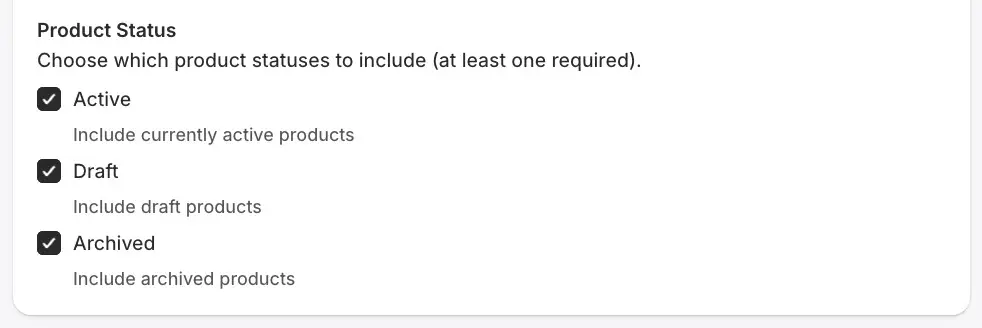
You’ll see three checkbox options:
- ✅ Active
- ✅ Draft
- ✅ Archived
You must select at least one.
How it works
This filter narrows down products within your selected scope.
Examples:
- ✔ Active only → skips Draft and Archived
- ✔ Active + Draft → skips Archived
- ✔ Draft only → processes only Draft products
- ✔ All three → includes everything
Why this matters
This is useful when:
- You want to optimize only live products (Active)
- You’re preparing upcoming products (Draft)
- You’re cleaning up old archived listings
Step 7 — Save the Task

After configuring:
- Click Save
- You’ll be redirected to the Task page
- The task enters the queue
What Happens Next?
Background Processing
- Task status will show: Pending → Running → Finished
- You can leave the app while it runs
- You’ll receive an email notification when completed
Reviewing Generated Alt Texts
Once finished, the Task page will show:
- Total images processed
- Credits used
- Image-by-image comparison:
- Original alt text
- Generated alt text
You can:
- Regenerate individual alt texts
- Review by clicking on each image
- Apply all alt texts (if Autosave was disabled)
Credit Usage Explained
- 1 generated alt text = 1 credit
- Overwriting counts as generation
- Skipped images do NOT consume credits
- New installs receive 50 free credits
- Credits are purchased as one-time packs (no subscriptions)
Recommended Workflows
First-Time Users
- Scope: Only missing alt texts
- Product Scope: Selected Products (1–3 items)
- Autosave: Disabled
- Status: Active only
Full Store Optimization
- Scope: Only missing alt texts (safer)
- Product Scope: All Products
- Autosave: Enabled (after testing)
SEO Refresh
- Scope: All images (overwrite)
- Product Scope: Selected Collections
- Autosave: Disabled first, then Enabled after review
Common Mistakes to Avoid
❌ Running All Products with overwrite on a large catalog without testing
❌ Forgetting to filter by Product Status
❌ Enabling Autosave on first-ever task without reviewing quality
❌ Not naming tasks clearly
Final Thoughts
Creating tasks in Syncor Alt gives you:
- Full control over automation
- Granular filtering
- Predictable credit usage
- Safe bulk updates
Once you understand scopes, filters, and autosave behavior, you can confidently automate alt text generation at scale.
Next Step
Try Syncor Alt to boost your SEO. Test Syncor Alt in 50 products and check your SEO results. Syncor Alt doesn’t have subscriptions, so you don’t have to worry about adding another monthly bill. If you get positive SEO results, you can purchase credit packs to generate alt texts for the rest of your products. No need to subscribe to any plan. Just pay for what you use.
Try Syncor Alt → https://apps.shopify.com/syncor-alt